Using the simulator
Graphical User Interface
Main window
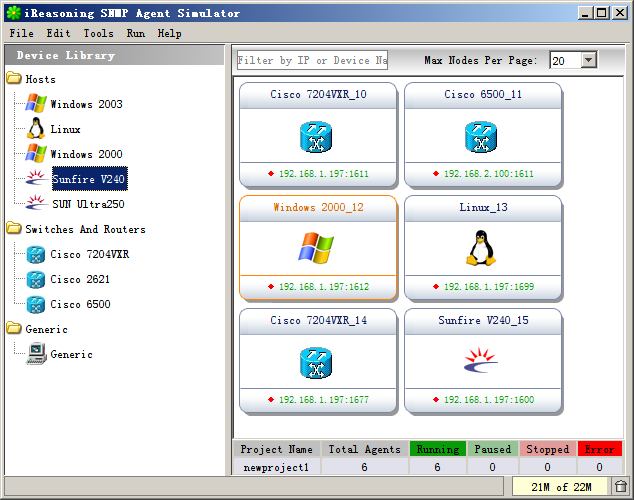
The main window has two panes. The left pane contains predefined devices that you can drag into the right pane. The right pane shows the simulators and their status. Right-click a simulator to change its status or settings from the context menu.
Generating Data from MIBs
You can also generate SNMP walk data from MIB files.
Select “Tools/Generate Data from MIBs.” To enter multiple MIBs, separate them with commas.
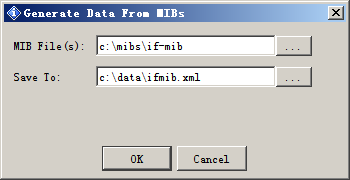
Figure: Generate Data from MIBs
In this example, SNMP walk data is generated in “c:\simulators\data\mibdata” from MIB-II and the host MIB.
To add the generated data to a simulator, right-click the simulator, select “Properties,” and change its data file property.
Recording SNMP Traps
You can record SNMP traps and add them to a simulator. When the simulator starts, it sends the recorded traps to the trap sinks defined in its configuration file at the specified times.
Select “Tools/Record SNMP Trap.”
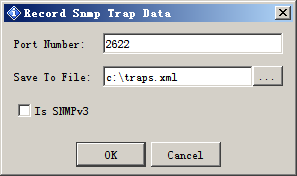
Figure: Record SNMP Trap
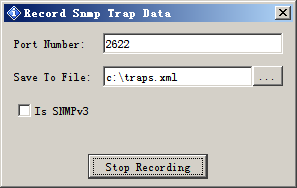
Figure: Recording traps...
Click “Stop Recording” when you have finished. In this example, the trap data is stored in “c:\traps.xml.”
To add the recorded traps to a simulator, right-click the simulator, select “Properties,” and change its trap file property.