Quick start with an SNMP agent
Open the Enterprise web console on the server machine, normally at
http://127.0.0.1:11900. A fresh server without an administrator password opens
directly. If password protection is configured, sign in as admin.
192.168.1.10 or 192.168.1.10:161, into the Agent field.
On the first run there may be no recent agent items yet; the web client creates or reuses
the matching profile when you run the query.
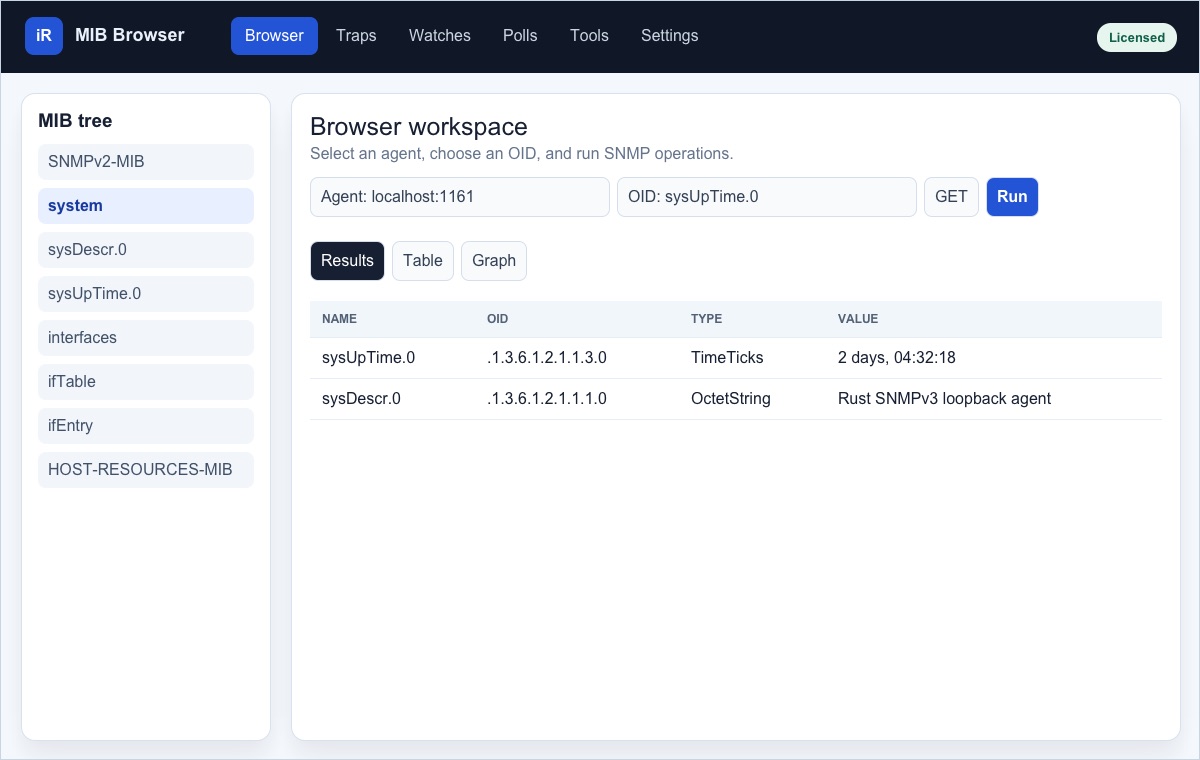
system or sysUpTime.0 in the MIB tree, choose
GET, and click Run. Results appear in the Results tab.
Understand the web client interface
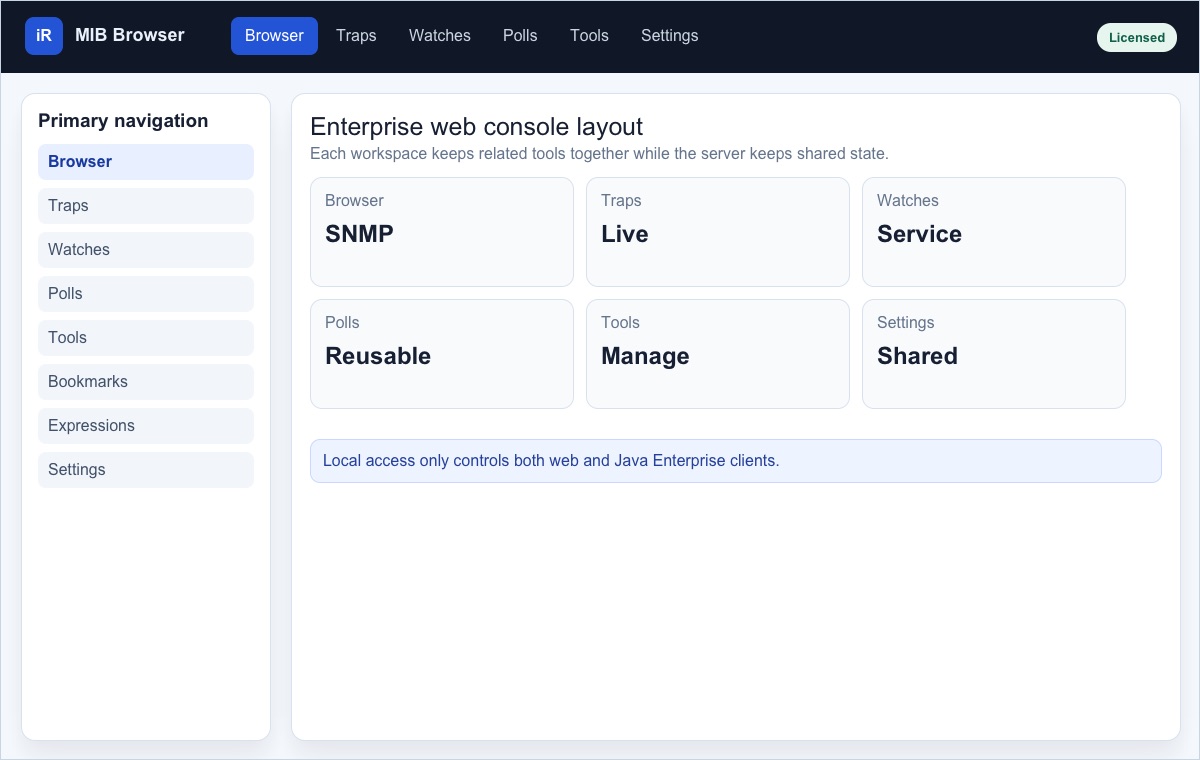
The web client is organized around persistent top-level workspaces. Most operations are server-side, so closing a browser tab does not stop the Enterprise server, trap receiver, or saved watch service.
Browser
SNMP operations, MIB tree navigation, results, tables, graphs, bookmarks, and expressions.
Traps
Live notifications, persisted history, severity, acknowledgement, clearing, and rule creation.
Watches
Current monitored values, retained history, alarm state, and watch settings.
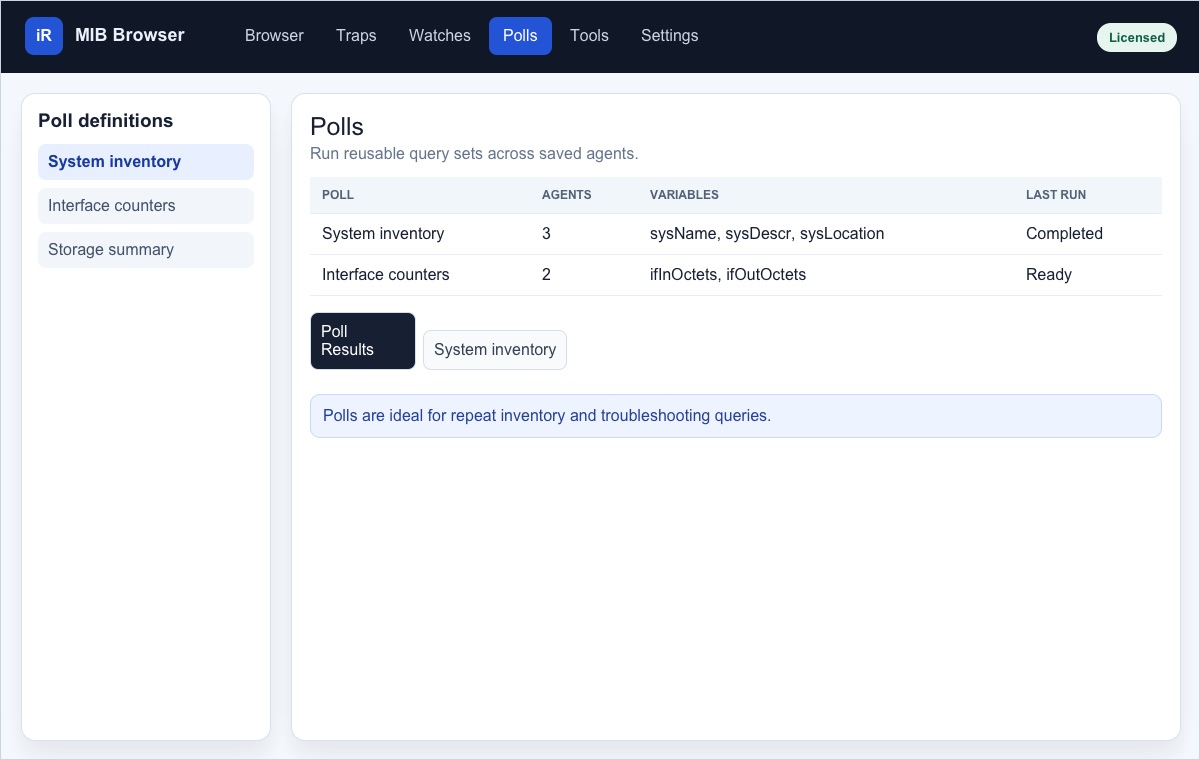
Polls
Reusable multi-agent query definitions and run results.
Tools
Discovery, diagnostics, SNMPv3 USM/VACM, NET-SNMP extend, port views, and snapshots.
Settings
Security, agent profiles, MIB files, trap receiver, SMTP, rules, and server status.
Shared state and sessions
Agent profiles, MIB activation, trap receiver settings, rules, watches, polls, and expressions are shared through the Enterprise server. Bookmarks are saved in the current browser and run against the agent currently selected in Browser.
Browse MIBs and query agents
The Browser workspace combines an agent selector, MIB tree, OID input, operation selector, result tabs, table views, graphs, and action dialogs.
| Operation | Use it for | Notes |
|---|---|---|
| GET | Read a scalar or exact instance such as sysDescr.0. |
Best for known OIDs and quick checks. |
| GET NEXT | Read the next lexicographic OID after the current value. | Useful when walking manually through a subtree. |
| GET SUBTREE / WALK | Read every variable below a selected node. | Long runs stream rows into the result tab and can be cancelled. |
| SET | Write a value to an agent object. | Requires write credentials or SNMPv3 write access through VACM. |
| Table | Render a MIB table, entry, or table column as a structured grid. | Table cells can be refreshed, graphed, watched, or set when writable. |
| Graph | Plot a numeric scalar, instance, or table column over time. | Counter-style values can be monitored visually without leaving Browser. |
Agent field and Advanced Properties
Enter a host, host:port, IPv6 address, or IPv6 with @port. If the
target is not already saved, the web client creates an agent profile using the current default
values. Use Advanced to edit SNMP version, communities, SNMPv3 user name, authentication
and privacy protocols, context name, and whether localized keys are derived with the engine ID.
MIB tree actions
- Search loaded MIB modules by object name or numeric OID.
- Select a node to update the OID field.
- Use the node details to understand type, access, status, module, and description.
- Export a subtree when you need a compact text view of loaded MIB content.
Bookmarks and expressions
Bookmarks save a local shortcut to an OID and operation. Expressions combine one or more OIDs into a calculated value, such as interface throughput. Expression variables can use raw values or counter deltas collected over a short interval.
Load, stage, activate, and unload MIB files
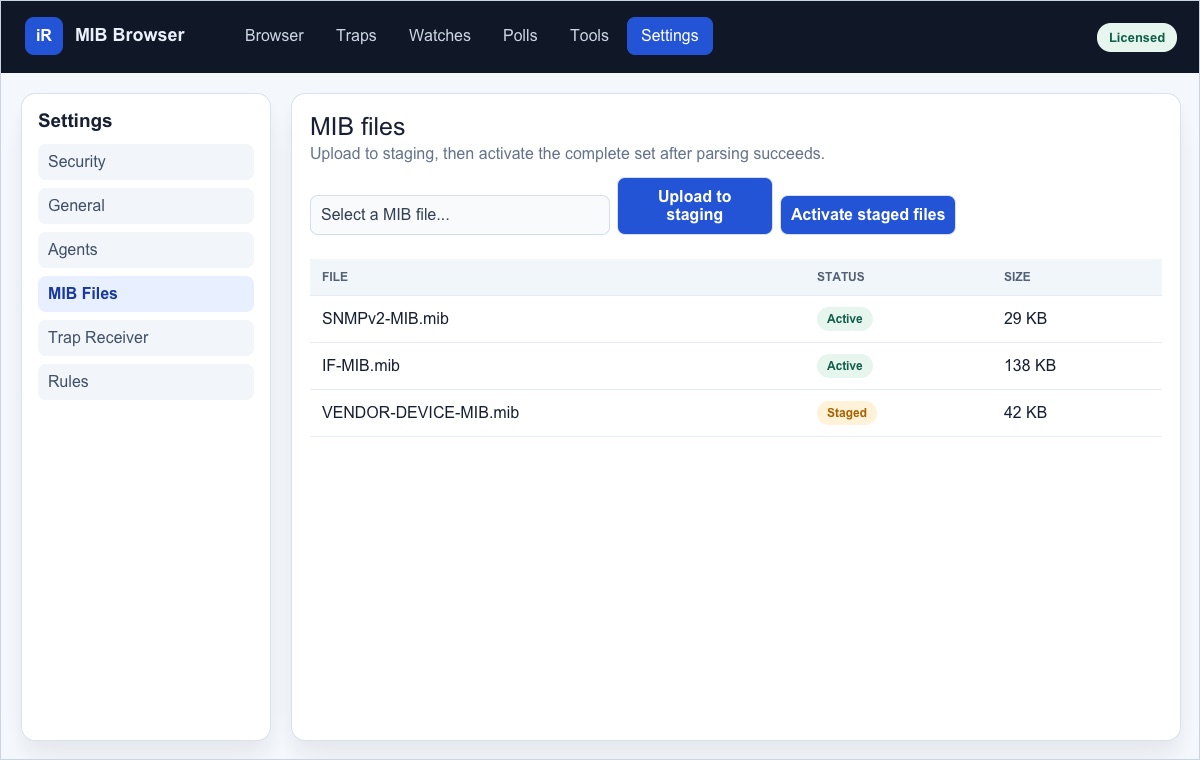
Open Settings > MIB Files to upload modules. Uploads are staged first. Click Activate staged files to reload the complete active MIB set. Existing queries continue, while new translations use the activated files.
Staging protects the active tree
New files remain staged until the chosen set parses successfully. This keeps malformed or incomplete uploads from replacing the currently active MIB tree.
Browser upload shortcut
The Browser workspace can also load MIB files directly. Uploaded modules are activated with the active set so the tree refreshes after parsing completes.
Work with results, tables, and graphs
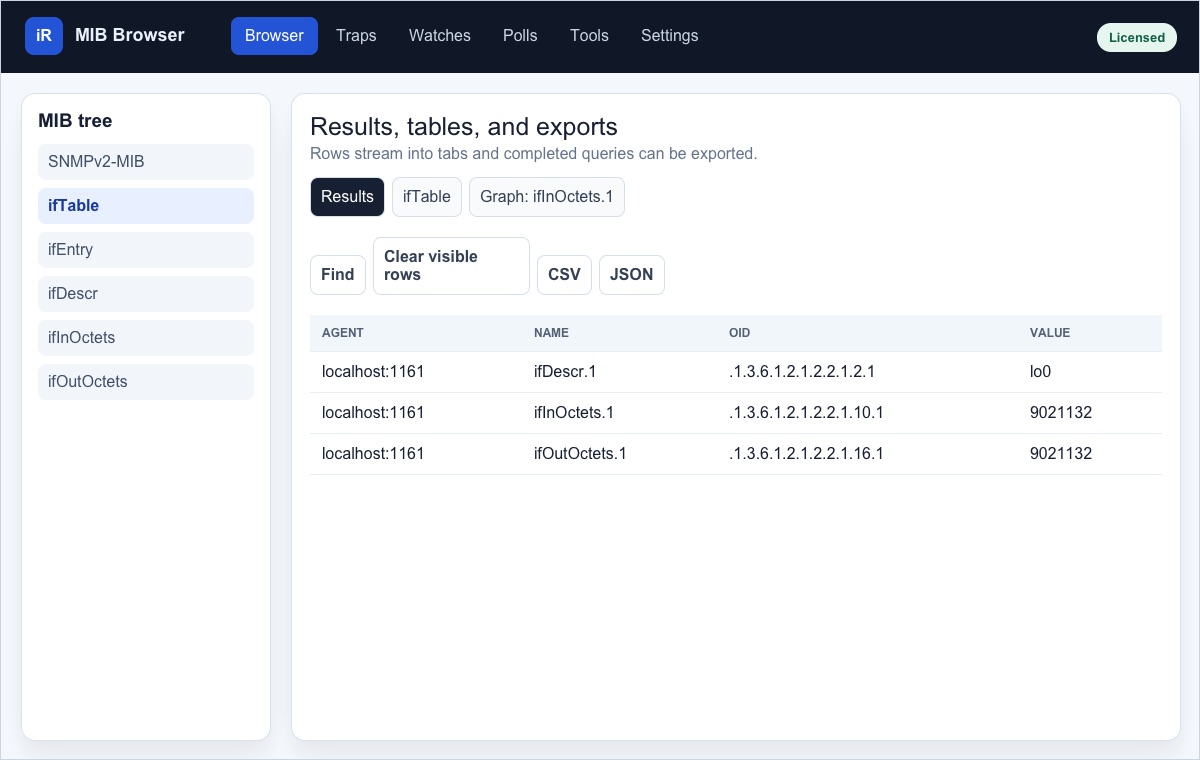
SNMP rows stream into tabs. The main Results tab can keep multiple query batches, while Table, Graph, Poll, and Expression runs open purpose-specific tabs.
Results tab
CSV / JSONGraph tab
Polling- Use Find in the result table to search names, OIDs, types, values, and agents.
- Export completed query results as CSV or JSON.
- Cancel a running query from its active tab when a walk or table is no longer needed.
- Clear visible rows without deleting server-side saved definitions.
Receive, review, and classify traps
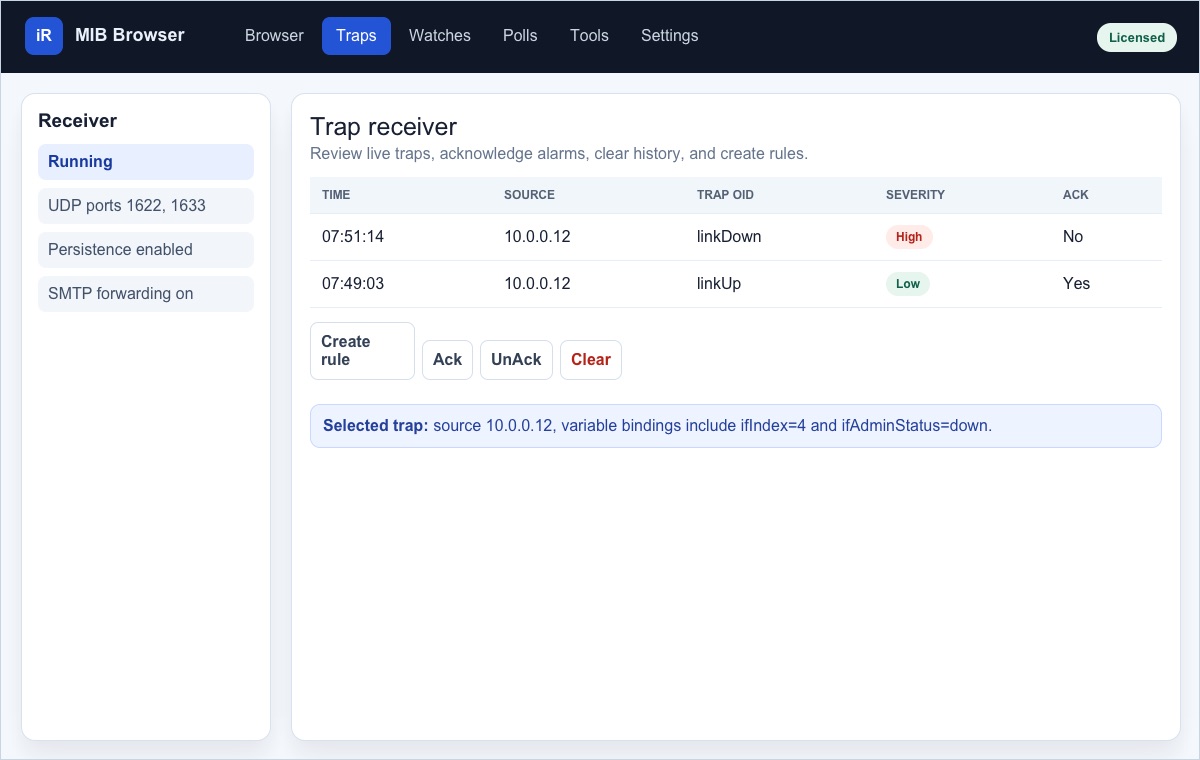
The Traps workspace shows live notifications and persisted history after filtering and rule evaluation. Use the receiver controls to start, stop, or restart the server-side Trap Receiver.
Trap list
Review source address, OID, severity, received time, acknowledgement state, and parsed variable bindings. Select a trap to inspect details.
Actions
Acknowledge, unacknowledge, clear, or create a rule from the selected trap. When a trap is selected, rule creation pre-fills matching condition fields.
Trap filter
Open Settings > Trap Receiver > Trap Filter to discard matching traps before they appear in the live receiver or trigger rules and actions. Filter by source IP address and trap OID.
Trap sender
The web client includes a Trap Sender for SNMPv1, SNMPv2c, and SNMPv3 traps and informs. Add variable bindings, apply OID suffixes, configure SNMPv3 sender settings, and save sender bookmarks for repeat tests.
Create Watches and Polls
Watches
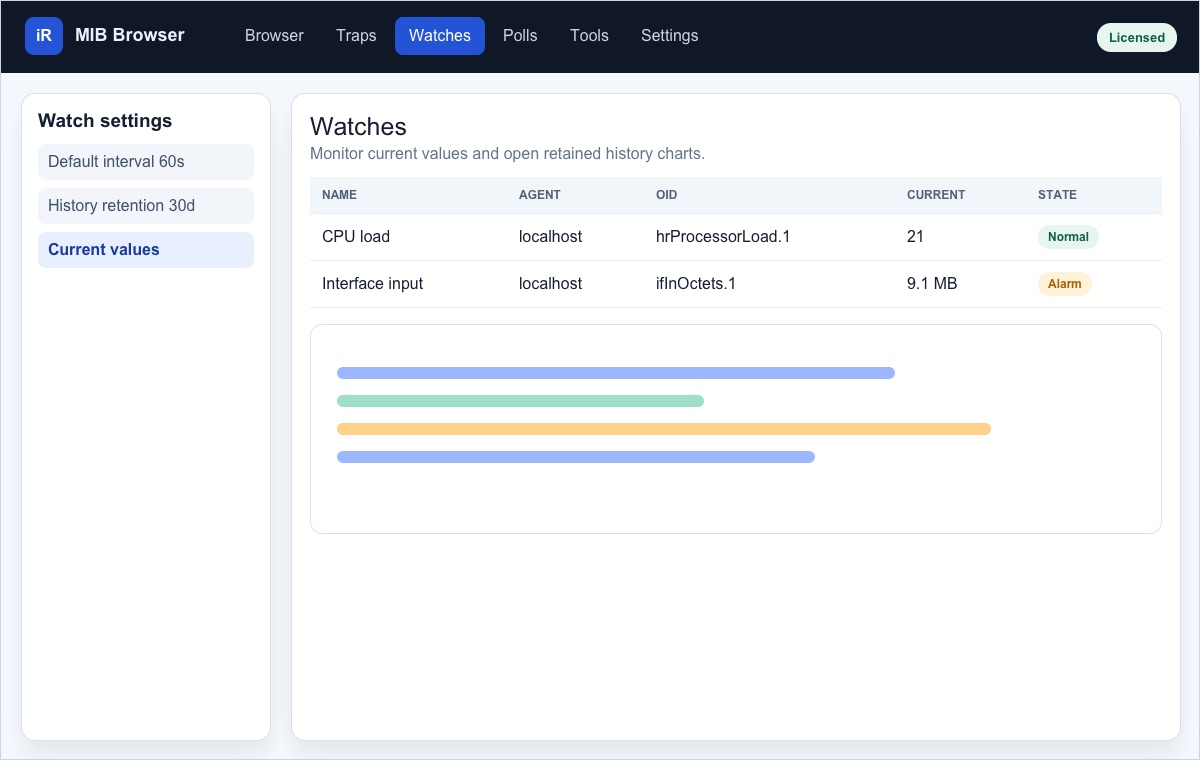
Watches collect current values through the Enterprise watch service. Add a watch from a selected Browser OID, review current state, open retained history, and configure the default interval and data retention in Watch Settings.
Polls
Polls are reusable definitions that query selected variables across one or more saved agents. Create or edit a poll, run it on demand, and inspect results in a dedicated tab.
Watches are best for continuous monitoring and historical charts. Polls are best for repeatable inventory, comparison, or troubleshooting queries.
Use the Tools menu
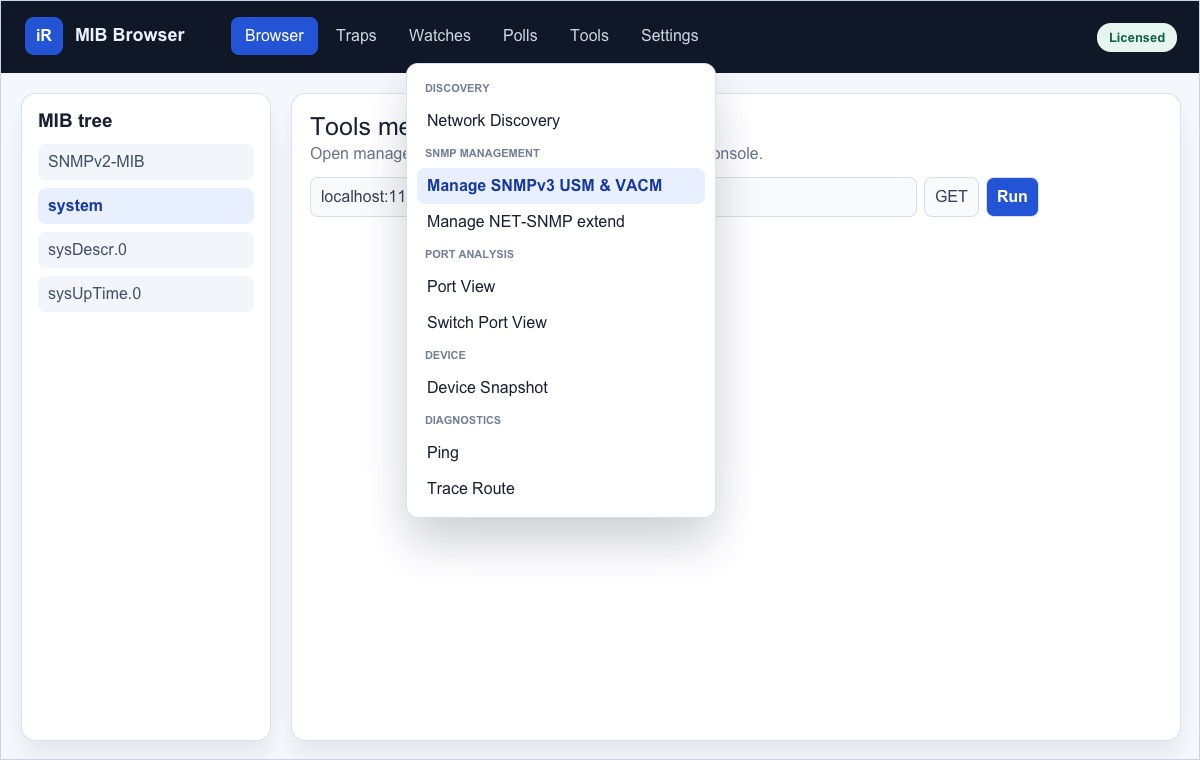
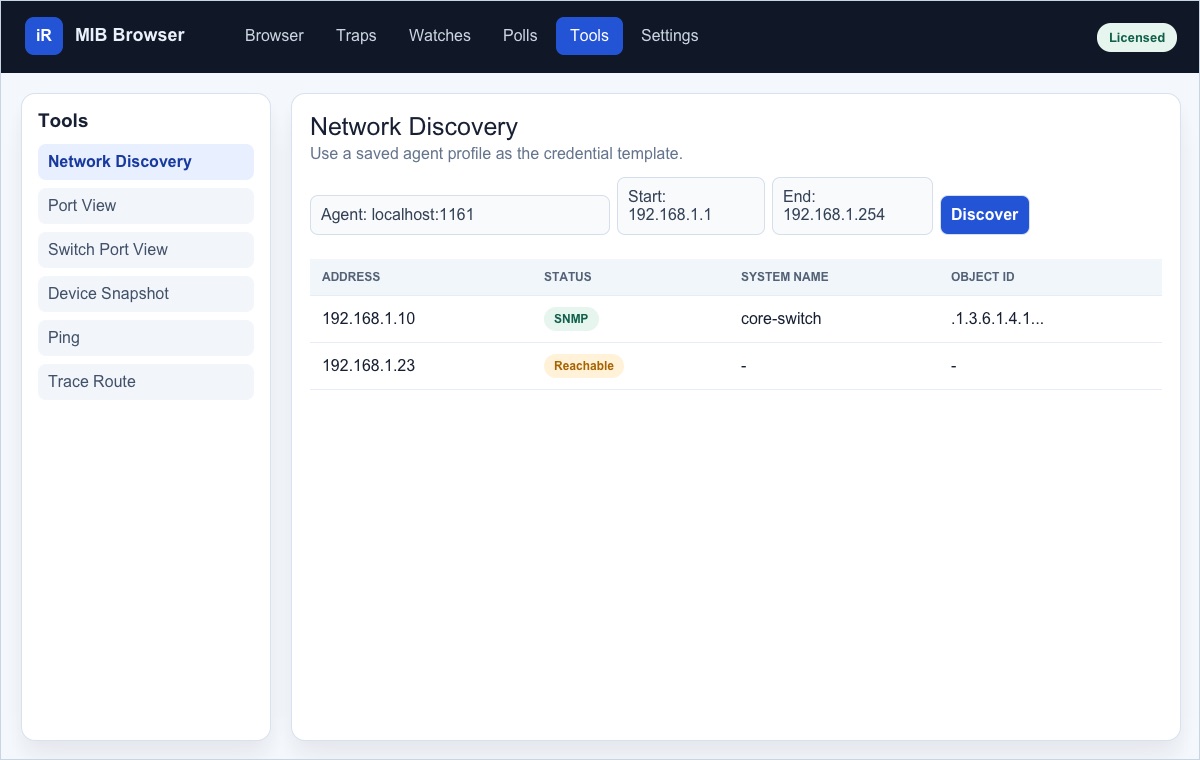
The Tools menu groups discovery, SNMP management, port analysis, device summaries, and network diagnostics.
| Tool | Purpose | Typical workflow |
|---|---|---|
| Network Discovery | Find reachable IPv4 devices and query SNMP system identity. | Select a saved credential template, enter start and end IPv4 addresses, then discover. |
| Manage SNMPv3 USM & VACM | Manage remote SNMPv3 users and access-control policy. | Select an SNMPv3 agent in Browser, then open the tool. |
| Manage NET-SNMP extend | Create, inspect, and remove NET-SNMP extend rows. | Use only with agents that expose the NET-SNMP-EXTEND-MIB tables. |
| Port View | Monitor IF-MIB interface utilization and error rates. | Choose a metric, refresh, or poll every 5 seconds. |
| Switch Port View | Correlate IF-MIB interfaces with bridge forwarding database entries. | Use with switches that expose bridge forwarding information. |
| Device Snapshot | Summarize system, interface, storage, process, and installed software data. | Run against a saved agent to gather HOST-RESOURCES-MIB and MIB-II data. |
| Ping | Run an ICMP reachability test from the Enterprise server. | Enter host, count, and timeout. |
| Trace Route | Show the network path from the Enterprise server to a host. | Enter target, maximum hops, and hop timeout; stop if needed. |
Manage SNMPv3 USM & VACM
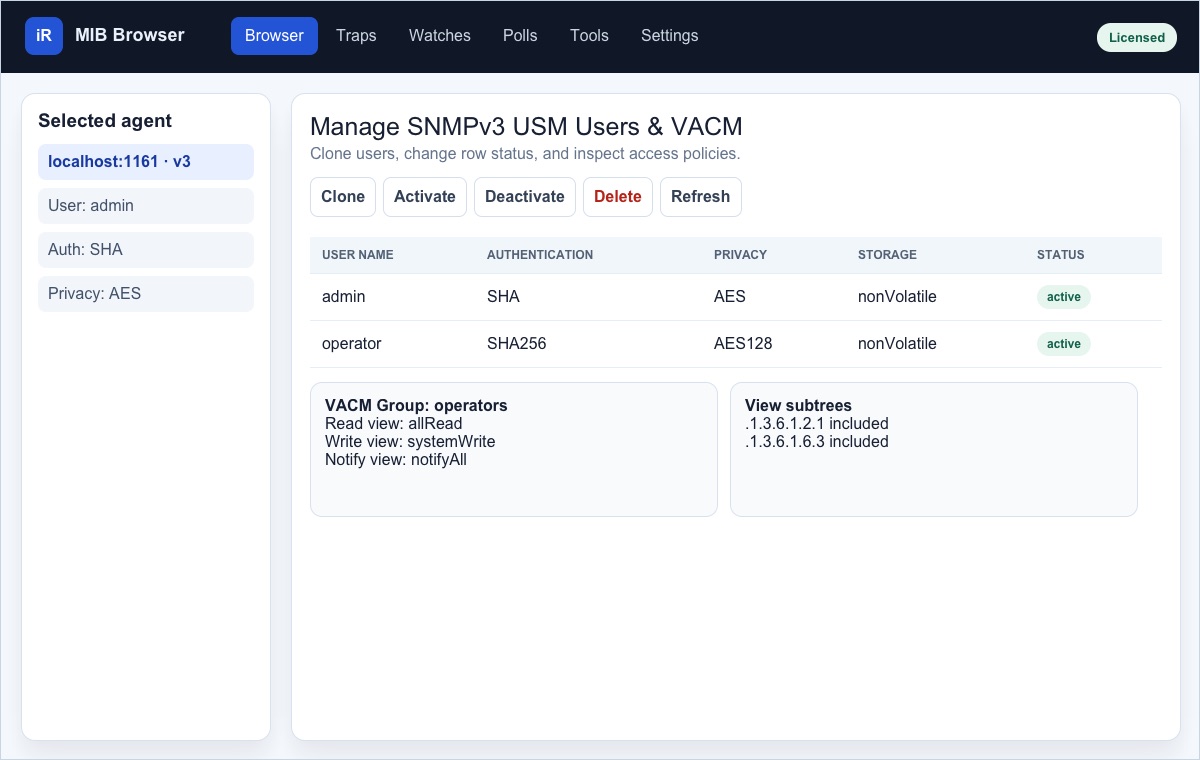
Open Tools > Manage SNMPv3 USM & VACM after selecting a target SNMPv3 agent in Browser. Confirm its SNMPv3 user, authentication protocol, privacy protocol, and context in Advanced before making changes.
USM user table
The tool queries usmUserTable from SNMP-USER-BASED-SM-MIB. It shows user name,
authentication protocol, privacy protocol, storage type, and row status.
| Action | What it does | Important detail |
|---|---|---|
| Clone | Creates a new USM user from the selected row. | Choose Create and activate or Create and wait. |
| Activate | Sets the selected user row to active. | The agent must permit the SET through its current SNMPv3 access policy. |
| Deactivate | Disables the selected user row without deleting it. | Use when rotating users or temporarily blocking access. |
| Delete | Removes the selected USM user row. | Confirm the deletion. Keep at least one working administrative user. |
| Refresh | Reloads USM users and VACM information from the selected agent. | Use after any remote change. |
VACM access details
When the agent supports SNMP-VIEW-BASED-ACM-MIB, the tool also queries
vacmSecurityToGroupTable, vacmAccessTable, and
vacmViewTreeFamilyTable. Select a USM user to show its security name, group
mapping, access rows, and referenced read, write, and notify view subtrees.
VACM groups
A group maps a USM security name to access policies. You can assign the selected user to an existing group, create a group with its first access-policy row, or delete a group and its mappings.
VACM views
Views define included or excluded subtrees. Create a view subtree by entering a view name, subtree OID, optional hexadecimal mask, and type. Delete removes only the selected subtree row.
Partial and unavailable states
Some agents expose USM but not VACM, or expose only part of the VACM tree. In that case the details area explains what could not be loaded while the available USM actions remain usable.
Use Suppression in trap rules
Suppression delays external actions after a rule matches an incoming trap. The delay gives the system a chance to cancel noisy notifications when the original problem is acknowledged, cleared, or followed by a related clearing trap.
Configure suppression
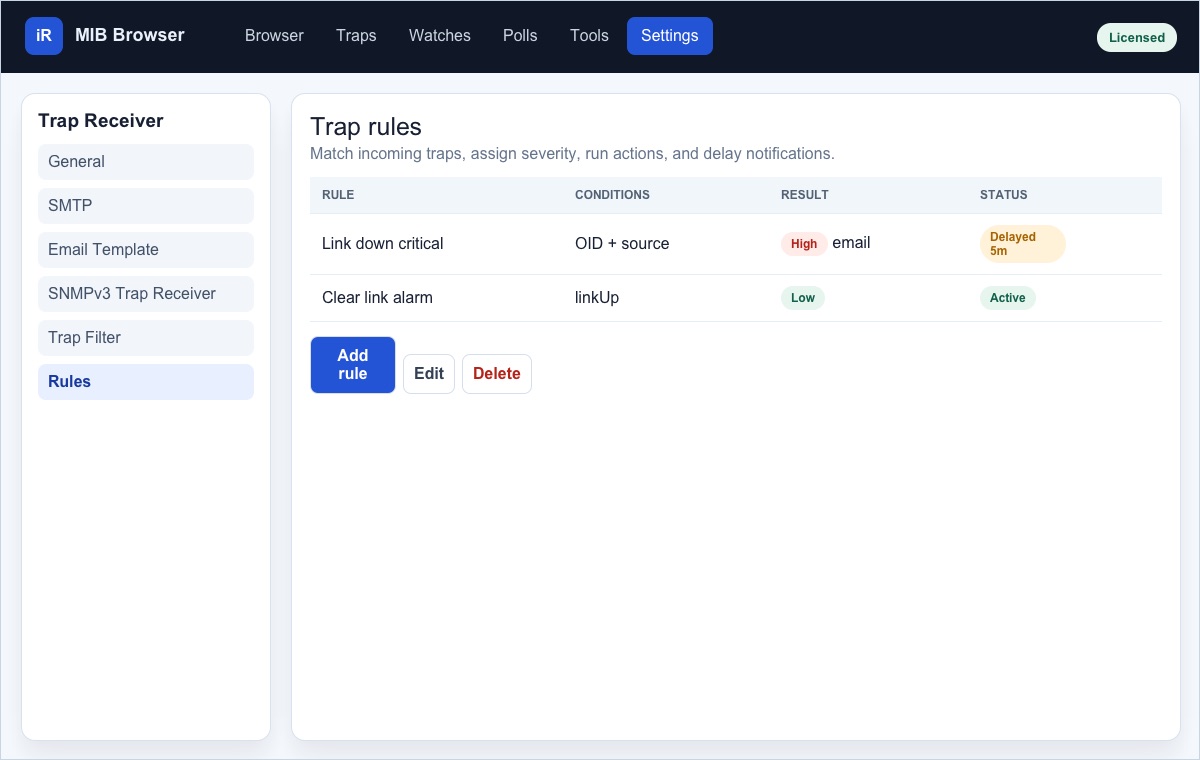
- Open Settings > Trap Receiver > Rules.
- Add or edit a rule and define at least one incoming trap condition.
- Set severity, description, and optional actions in the Actions tab.
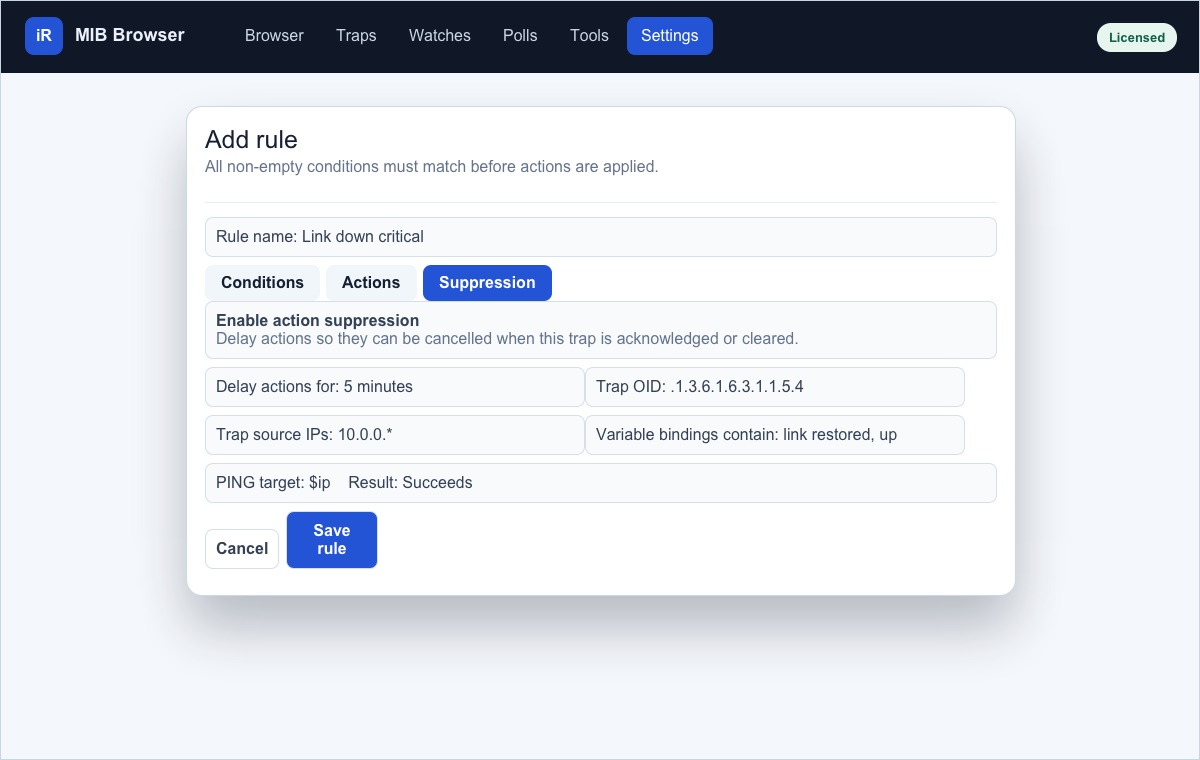
- Open the Suppression tab and select Enable action suppression.
- Enter Delay actions for as a positive number of minutes.
- Optionally add cancellation conditions for a related trap or PING result.
- Save the rule.
Cancellation conditions
| Condition | How it cancels pending actions |
|---|---|
| Original trap is acknowledged or cleared | Ack or clear the triggering trap during the delay window. Pending rule actions and delayed system-wide email for that trap are cancelled. |
| Trap OID |
A later related trap cancels the delay when its OID matches the configured OID.
Wildcards * and ? are supported.
|
| Trap source IPs | A related trap cancels the delay when its source matches one of the comma separated literal or wildcard source patterns. |
| Variable-binding values contain | A related trap cancels the delay when any raw variable-binding value contains one of the entered text values. Separate alternatives with commas or vertical bars. |
| PING |
After the delay, the server pings the configured target once. Choose
Succeeds to cancel when the host responds, or Fails to cancel when
it fails or times out. Use $ip for the triggering trap source.
|
What is delayed
Sound, rule email, command execution, rule SNMP requests, outgoing trap actions, and system-wide SMTP forwarding are held until the delay expires. If no cancellation occurs, each pending action runs once.
Severity and description changes are applied immediately because they describe the received trap. They are not external actions.
Configure the Enterprise server
Settings are shared by web and Java clients unless the page explicitly says a preference is local to the browser.
| Settings page | Use it for |
|---|---|
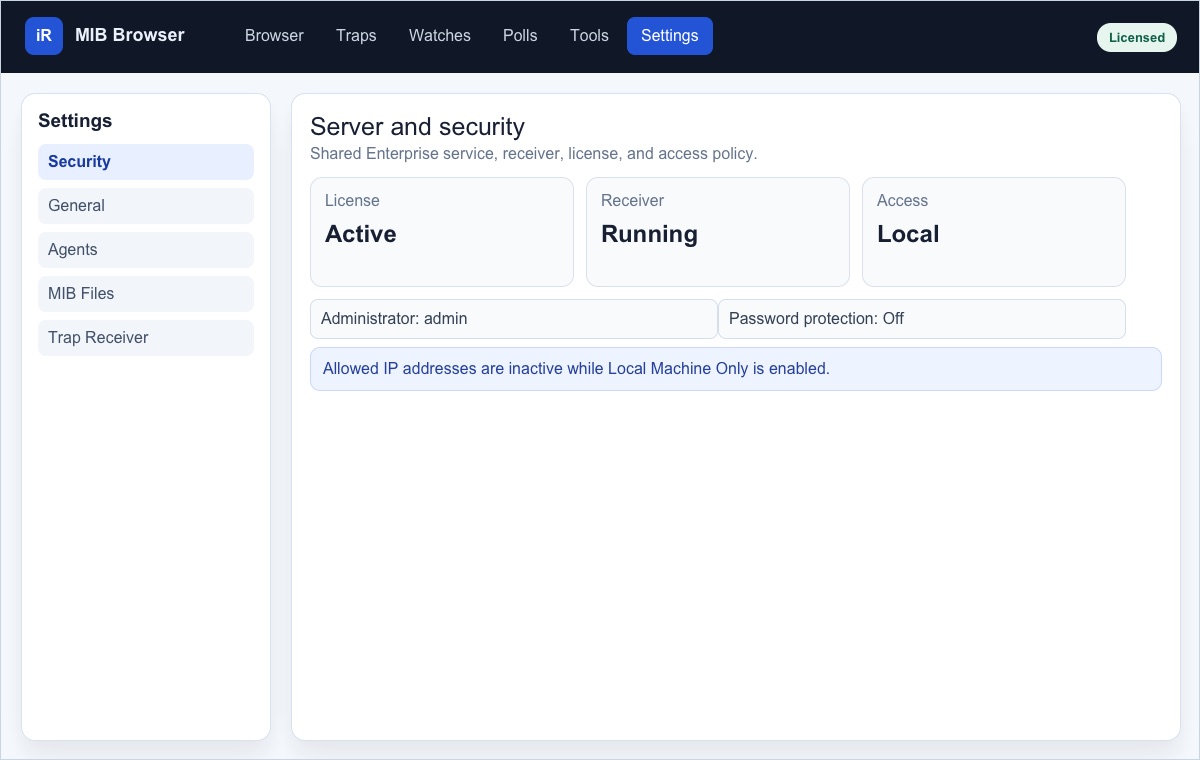
| Security > Local Machine Only | Restrict web and Java clients to loopback peers or allow permitted remote clients. |
| Security > Change Password | Set, change, or disable the admin password. |
| Security > Allowed IP Addresses | Allow literal IPv4/IPv6 addresses or inclusive address ranges when local-only mode is off. |
| General | Change appearance for this browser and defaults shared by clients. |
| Agent Profiles | Add saved agents and edit default values for new profiles. Credentials are write-only. |
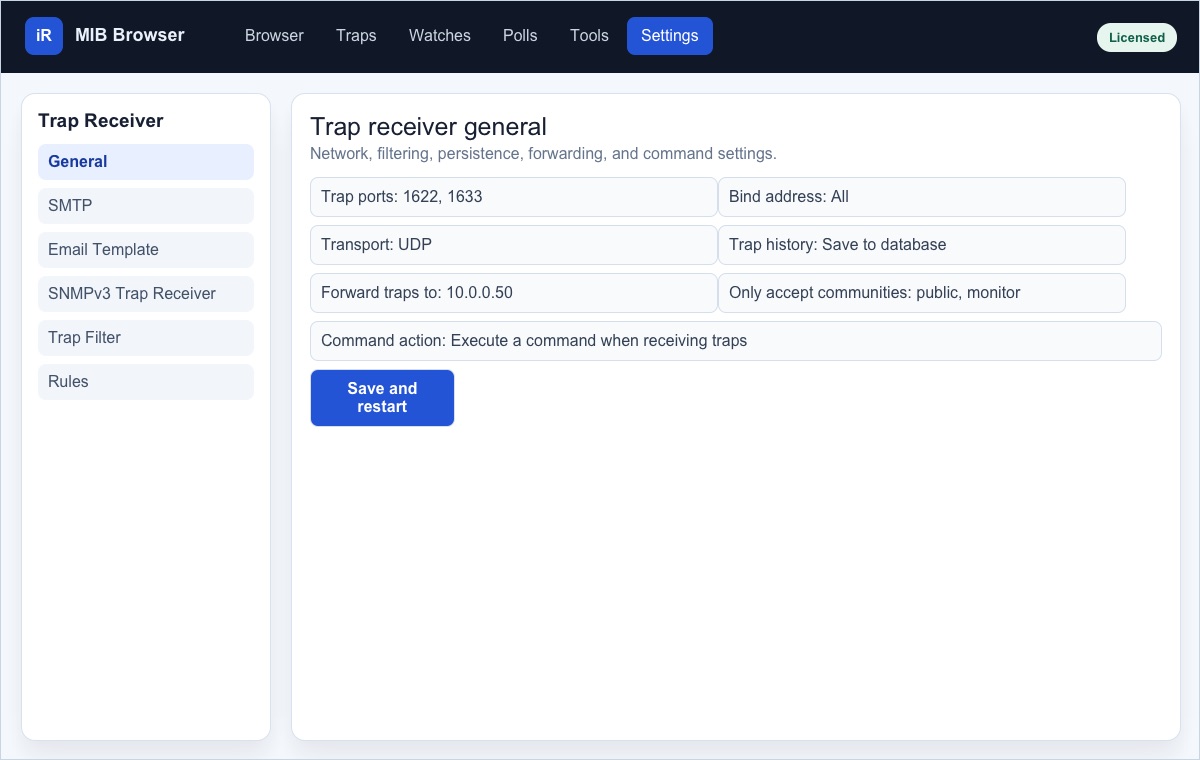
| Trap Receiver General | Configure ports, bind address, UDP/TCP, persistence, forwarding, allowed communities, and command action support. |
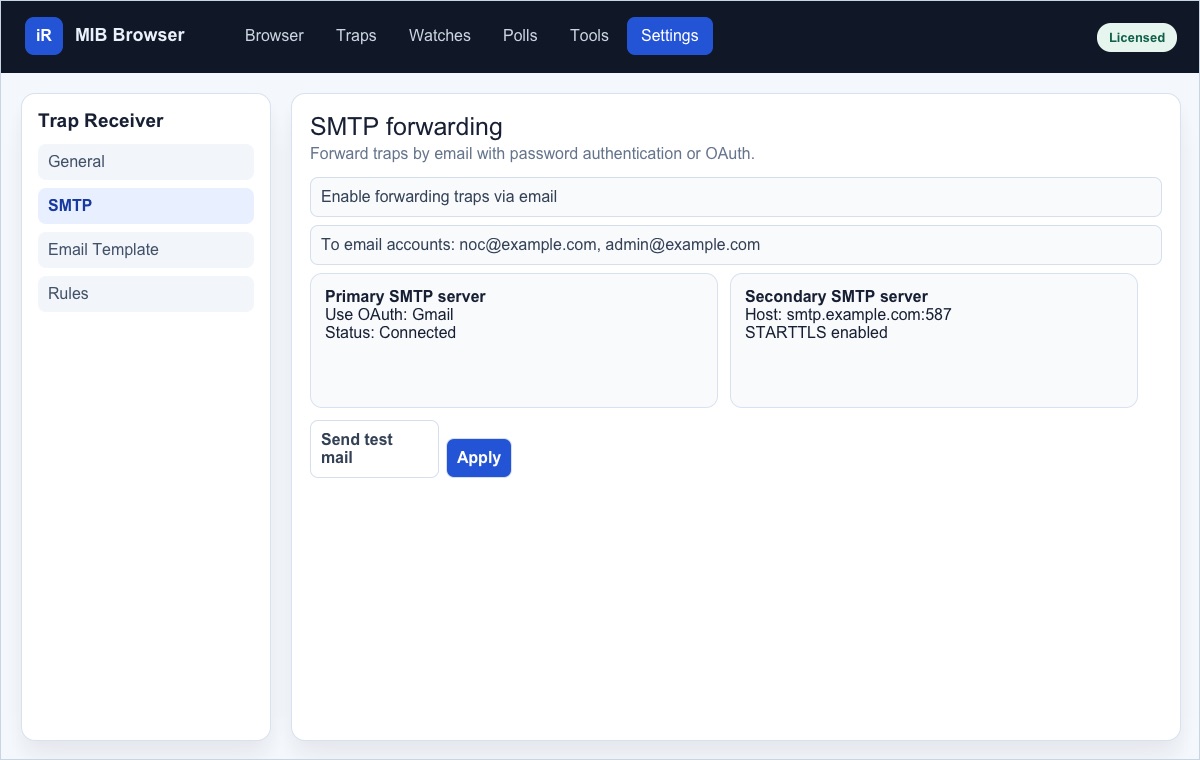
| SMTP | Forward traps by email using password authentication or OAuth for Gmail and Microsoft Outlook. |
| Email Template | Edit the plain-text subject and body used for trap email notifications. |
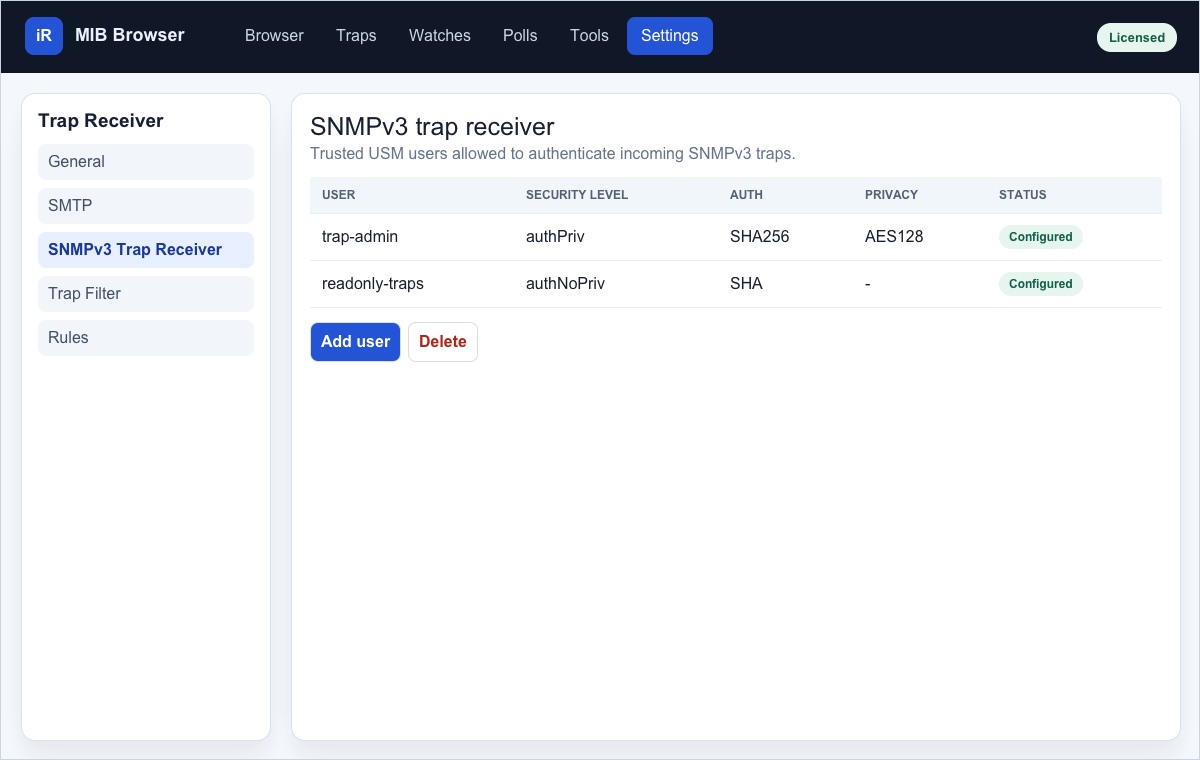
| SNMPv3 Trap Receiver | Add trusted USM users for authenticating and decrypting incoming SNMPv3 traps. |
| Rules | Create trap matching rules, actions, ignore behavior, and suppression. |
SMTP and OAuth
SMTP can use traditional host, user, and password settings, or OAuth for Gmail and Microsoft Outlook. OAuth setup is available when the web client is opened on the Enterprise server using localhost. Saved OAuth credentials stay on the server.
SNMPv3 trap receiver users
Open Settings > Trap Receiver > SNMPv3 Trap Receiver to add users trusted for incoming SNMPv3 traps. When the receiver is running, adding or deleting a user restarts it so the new trusted-user list takes effect.
Troubleshooting and safe operation
The page asks for sign-in
Use account admin. If the password was changed, existing sessions and Java
clients must sign in again.
The SNMP agent does not respond
Confirm the SNMP agent is running, the selected profile uses the right host and port, and the SNMP version and credentials match the agent.
SET fails
Check write community for SNMPv1/v2c or VACM write view for SNMPv3. Some agents expose rows as read-only or require RowStatus sequencing.
Trap emails do not send
Verify SMTP settings, recipients, OAuth authorization, and whether a suppression-enabled rule is delaying or cancelling system-wide email.